The configuration software
Applies to: IOcan · Standalone controller. What this means
Apex Studio is where a device is configured. It connects to the device over USB and holds every workspace you need between unboxing a device and driving the car. It runs either in a browser or as an installed Windows application — see getting the software.
Three workspaces are not documented yet — Controller, I/O Settings and Tuning. Everything else in the application is covered below.
Getting around
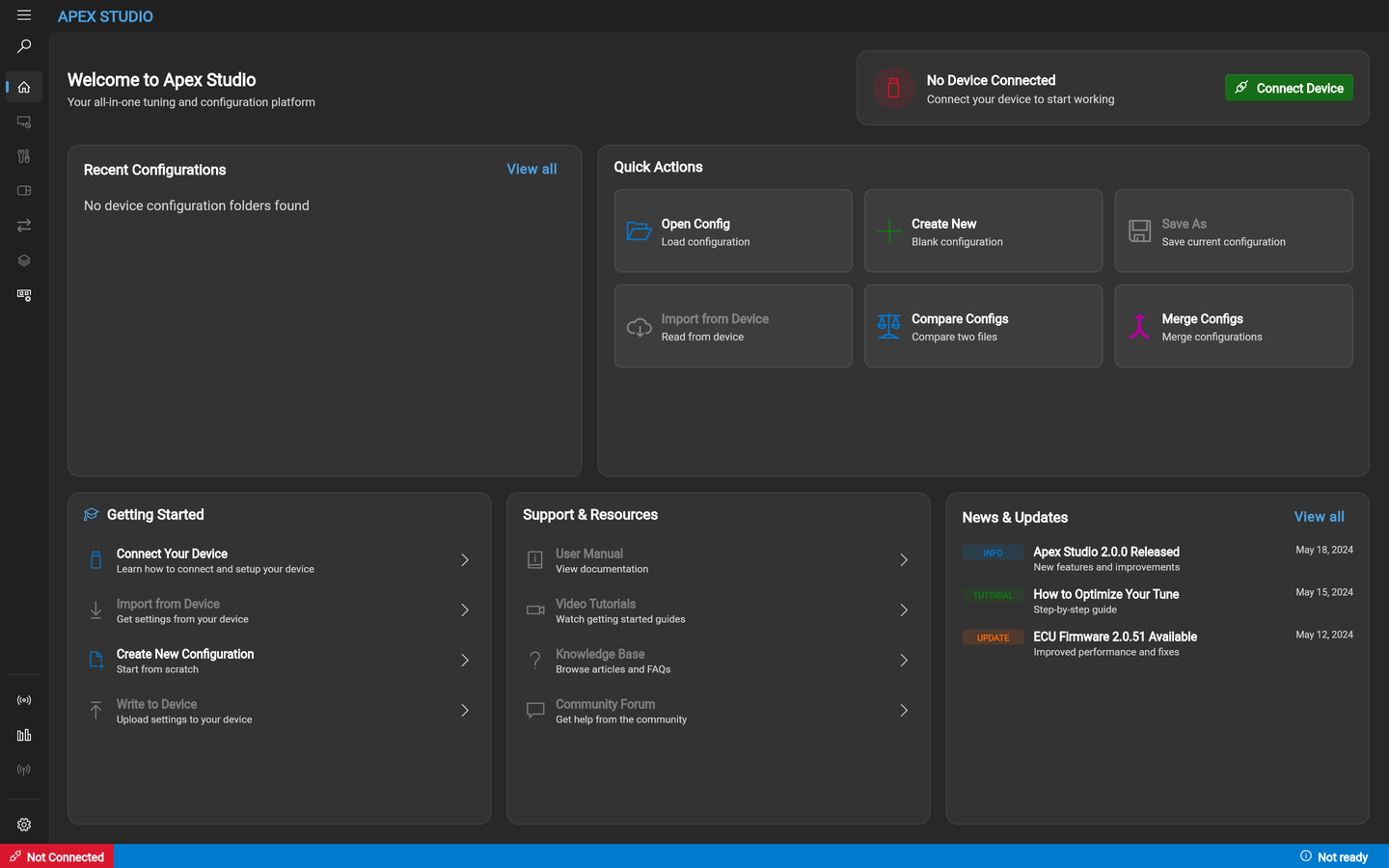
The navigation rail runs down the left. It collapses to icons and expands to labels, and it is split into three groups: the configuration workflow at the top, the standalone tools below the divider, and settings at the bottom.
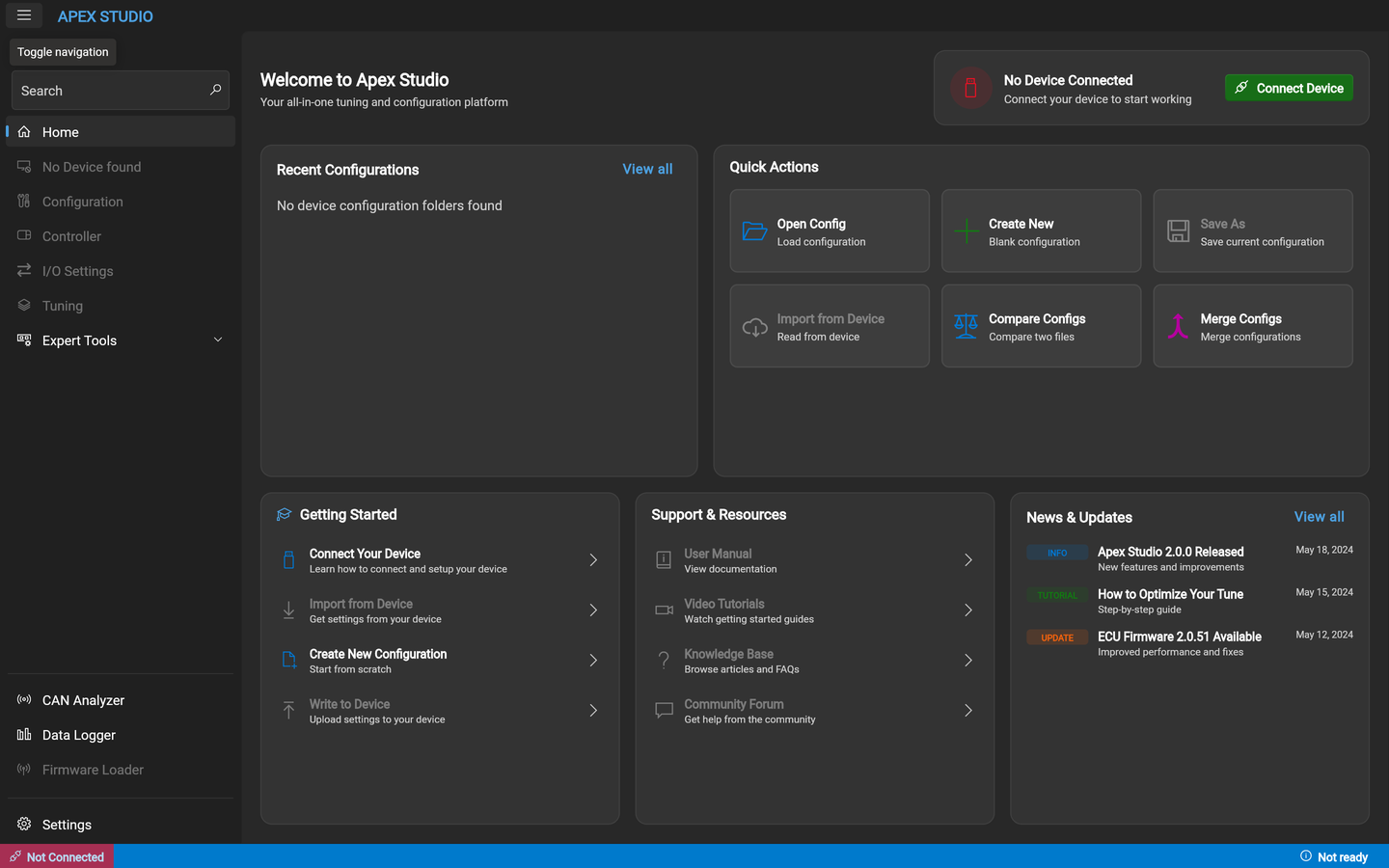
| Where | What it is for |
|---|---|
| Home | Recent configurations, quick actions, device connection |
| Configuration | The device's General section and its I/O — see the configuration workspace |
| Controller | The transmission controller's own parameters |
| I/O Settings | Per-pin setup for the inputs and outputs |
| Tuning | The maps |
| CAN Analyzer | Watch a live bus, or open a captured log — see CAN Analyzer |
| Data Logger | Plot channels live or from a file — see Data Logger |
| Firmware Loader | Flash device firmware |
Entries grey out when they are not reachable. With no device connected the device slot reads No Device found and the Firmware Loader is unavailable — neither is an error.
The status bar
The strip along the bottom carries two independent indicators, and they do not mean the same thing:
- Not Connected / Connected — whether the application has a serial link to a device.
- Not ready / Ready — whether the configuration in front of you is complete enough to be written.
A configuration can be Ready with nothing plugged in. That is the normal state when you are building one at a desk.